
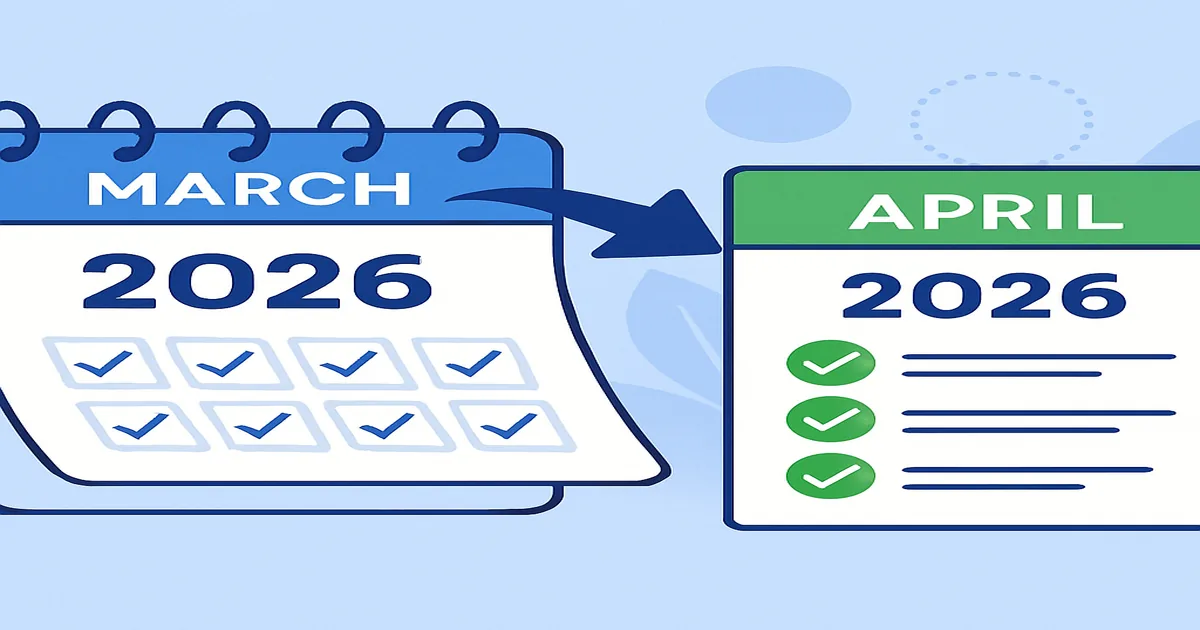
April 1, 2026 marks the start of Financial Year 2026-27, and every accountant and business owner using TallyPrime needs to prepare their software for the transition. Whether you manage books for a small Mumbai shop or a multi-branch enterprise across Maharashtra, getting your FY setup right from Day 1 prevents months of headaches — mismatched opening balances, GST filing errors, and audit complications.
This guide gives you a complete, step-by-step checklist for creating a new financial year in TallyPrime, migrating your data correctly, and closing FY 2025-26 without leaving loose ends. Bookmark this page — you'll refer to it every April.
Before You Start: Pre-Transition Checklist
Before touching any settings in TallyPrime, complete these critical tasks for FY 2025-26:
- Back up your company data — Go to Gateway of Tally > F3: Company Info > Backup. Save to an external hard drive AND cloud storage. This is non-negotiable.
- Complete all pending voucher entries — Ensure every sales invoice, purchase bill, journal entry, and payment/receipt voucher for March 2026 is recorded.
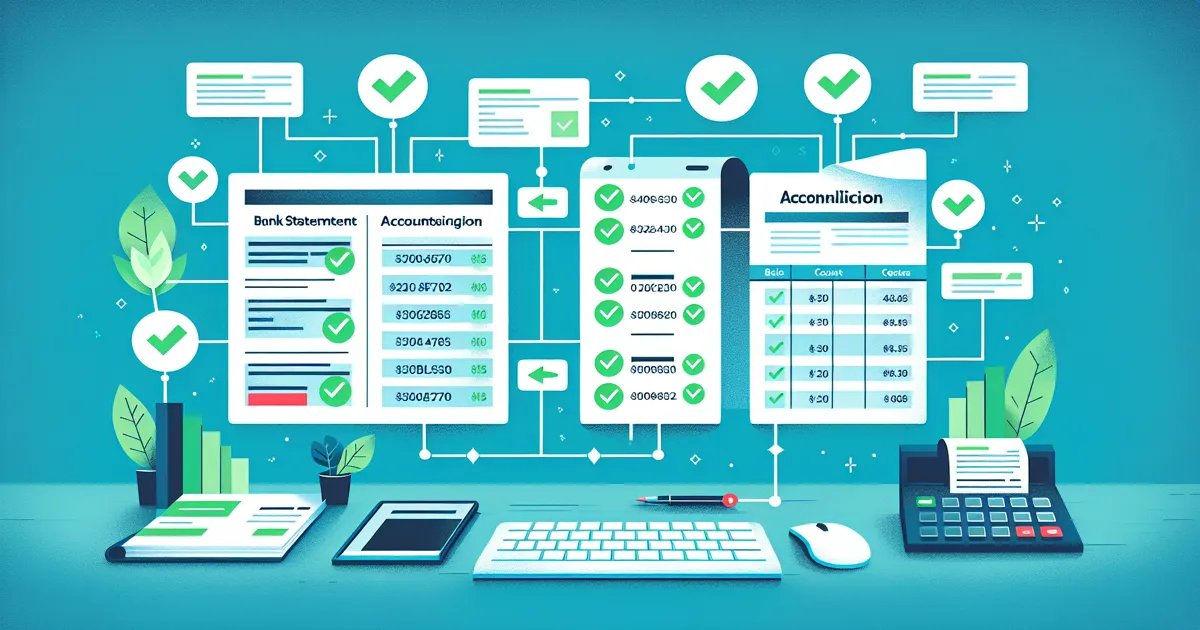
- Reconcile all bank accounts — Use the Bank Reconciliation feature (Gateway of Tally > Banking > Bank Reconciliation) to match every transaction.
- File final GST returns for March 2026 — Complete GSTR-1 and GSTR-3B for March before starting new year entries.
- Verify stock/inventory figures — Run a physical stock check and match it with TallyPrime's Stock Summary report.
- Print or export key reports — Save Balance Sheet, Profit & Loss, Trial Balance, and outstanding statements for FY 2025-26.
Step-by-Step: Creating FY 2026-27 in TallyPrime
Unlike some accounting software that requires you to manually create a new company or database, TallyPrime handles the new financial year automatically. Here's the process:
- Open your company in TallyPrime — Launch TallyPrime and load your existing company (the one with FY 2025-26 data).
- Press F2 (Date) — At the Gateway of Tally, press F2 to change the current date.
- Enter a date in April 2026 or later — Type
01-04-2026or any date in the new financial year. - TallyPrime creates FY 2026-27 automatically — The software creates the new year and carries forward all closing balances as opening balances. No separate "Create New Year" step is needed.
- Verify the period — Check the company info bar at the top. It should show "1-Apr-2026 to 31-Mar-2027".
Pro Tip: You don't need to "close" FY 2025-26 before creating FY 2026-27. TallyPrime lets you work in both years simultaneously. Simply press F2 to switch between years.
Verifying Opening Balances for FY 2026-27
This is the most critical step — and where most mistakes happen. After switching to FY 2026-27:
- Open Balance Sheet — Go to Gateway of Tally > Reports > Balance Sheet. Set the date to 1-Apr-2026.
- Compare with FY 2025-26 closing — The opening balance of every ledger in FY 2026-27 must exactly match the closing balance of FY 2025-26.
- Check the Profit & Loss transfer — Verify that the net profit/loss from FY 2025-26 has been correctly transferred to the Profit & Loss Account (under Capital Account group).
- Verify receivables and payables — Run Sundry Debtors and Sundry Creditors ageing reports. Ensure all outstanding bills are carried forward.
- Check fixed asset balances — Verify depreciation has been correctly applied and opening balances reflect post-depreciation values.
If you notice any mismatch, go back to FY 2025-26 (press F2, enter a March 2026 date) and check for unadjusted or missing entries.
Update Invoice Series and Voucher Numbering
Every new financial year requires fresh invoice numbering series to comply with GST Rule 46(b). For each voucher type:
- Go to Gateway of Tally > Alter > Voucher Types
- Select each voucher type (Sales, Purchase, Credit Note, Debit Note, etc.)
- Update the Starting Number to 1
- Set a financial year prefix like
/26-27/or-2627- - Test by creating a sample voucher to confirm the new numbering
Repeat for all voucher types: Sales, Purchase, Receipt, Payment, Journal, Credit Note, and Debit Note.
Verify and Update GST Configuration
GST rates and rules can change at the start of a new financial year. Before entering any FY 2026-27 transactions:
- Check for GST rate changes — Review the latest GST Council notifications for any rate revisions effective from April 1, 2026. Update stock items and ledger GST rates accordingly.
- Verify GSTIN details — Go to F11: Features > Statutory & Taxation. Confirm your GSTIN, state, and registration type are correct.
- Update e-invoicing settings — If your turnover crosses the e-invoicing threshold, enable e-invoicing in TallyPrime (Gateway of Tally > F11 > GST Details).
- Renew TSS (Tally Software Services) — Ensure your TSS subscription is active. An active TSS is required for connected GST features, e-invoicing, and automatic statutory updates.
- Check HSN/SAC codes — Verify that all stock items have correct HSN codes and service ledgers have correct SAC codes for FY 2026-27 compliance.
Properly Closing FY 2025-26
While TallyPrime doesn't force you to formally close a financial year, you should follow these best practices:
- Complete all adjustments — Record depreciation, provisions, prepaid expenses, and accrued income/expenses for FY 2025-26.
- Finalize GST annual return data — Ensure GSTR-9/9C data is ready (even if filing deadline is later).
- Run the Exception Reports — Go to Gateway of Tally > Display > Exception Reports. Fix any negative stock, ledger mismatches, or unresolved vouchers.
- Lock the old year (optional) — Go to F11: Features > Accounting Features > Set "Use Security Control" to Yes. Create a password to prevent accidental changes to FY 2025-26 data.
- Take a final backup — After all adjustments, take one more backup labelled "FY2025-26-FINAL".
Complete FY 2026-27 Setup Checklist
Print this checklist and tick off each item as you complete it:
- ☐ Back up FY 2025-26 company data (external drive + cloud)
- ☐ Complete all pending voucher entries for March 2026
- ☐ Reconcile all bank accounts
- ☐ File GSTR-1 and GSTR-3B for March 2026
- ☐ Verify physical stock against TallyPrime stock summary
- ☐ Record depreciation and year-end adjustments
- ☐ Print/export Balance Sheet, P&L, and Trial Balance for FY 2025-26
- ☐ Press F2 and change date to 01-04-2026 to create new FY
- ☐ Verify opening balances match FY 2025-26 closing balances
- ☐ Check Profit & Loss transfer to capital account
- ☐ Reset invoice series for all voucher types with FY prefix
- ☐ Update GST rates if any changes notified for FY 2026-27
- ☐ Verify GSTIN and statutory settings in F11
- ☐ Confirm e-invoicing configuration
- ☐ Renew TSS subscription if expiring
- ☐ Verify HSN/SAC codes on all items
- ☐ Lock FY 2025-26 with security password (optional)
- ☐ Take final backup of completed FY 2025-26
- ☐ Test: Create a sample invoice in FY 2026-27 and verify format
- ☐ Inform accounts team about new invoice numbering format
Common Mistakes to Avoid
Every April, our support team handles hundreds of calls from businesses that made these avoidable errors:
- Mistake 1: Not taking a backup before transition — If something goes wrong during year-end adjustments, you lose data permanently. Always backup first.
- Mistake 2: Forgetting to complete FY 2025-26 entries — Entering March vouchers after switching to FY 2026-27 changes your opening balances, causing confusion.
- Mistake 3: Ignoring opening balance verification — Assuming TallyPrime carries everything forward correctly without checking. Always verify the Balance Sheet.
- Mistake 4: Not resetting invoice numbering — Continuing FY 2025-26 invoice series into the new year violates GST Rule 46(b) and causes e-invoicing failures.
- Mistake 5: Skipping bank reconciliation — Unreconciled bank entries create discrepancies that compound in the new year.
- Mistake 6: Using expired TSS — Without an active TSS, TallyPrime can't download statutory updates, leaving you with outdated GST rates and compliance rules.
- Mistake 7: Not locking the old year — Team members accidentally entering vouchers in FY 2025-26 after the transition disrupts finalized balances.
Multi-Company and Multi-Branch Setup
If you manage multiple companies or branches in TallyPrime, repeat the entire checklist for each company. Additional considerations:
- Inter-company balances — Verify that receivables/payables between group companies match on both sides.
- Consolidated reports — Run Group Company reports to ensure consolidated figures are correct.
- Branch-wise invoice series — Each branch should have a distinct invoice prefix (e.g., MUM/26-27/, PNQ/26-27/) to avoid duplication.
- Data synchronization — If using TallyPrime Server for multi-location access, synchronize all branches before starting the new year.
Need help setting up FY 2026-27 in TallyPrime? Mark IT Solutions is Mumbai's trusted 5-Star Tally Partner with 20+ years of experience. Our team can handle the complete year-end transition — backup, balance verification, GST configuration, and invoice series setup. Call us at 022 6199 2222 or request a consultation today.