

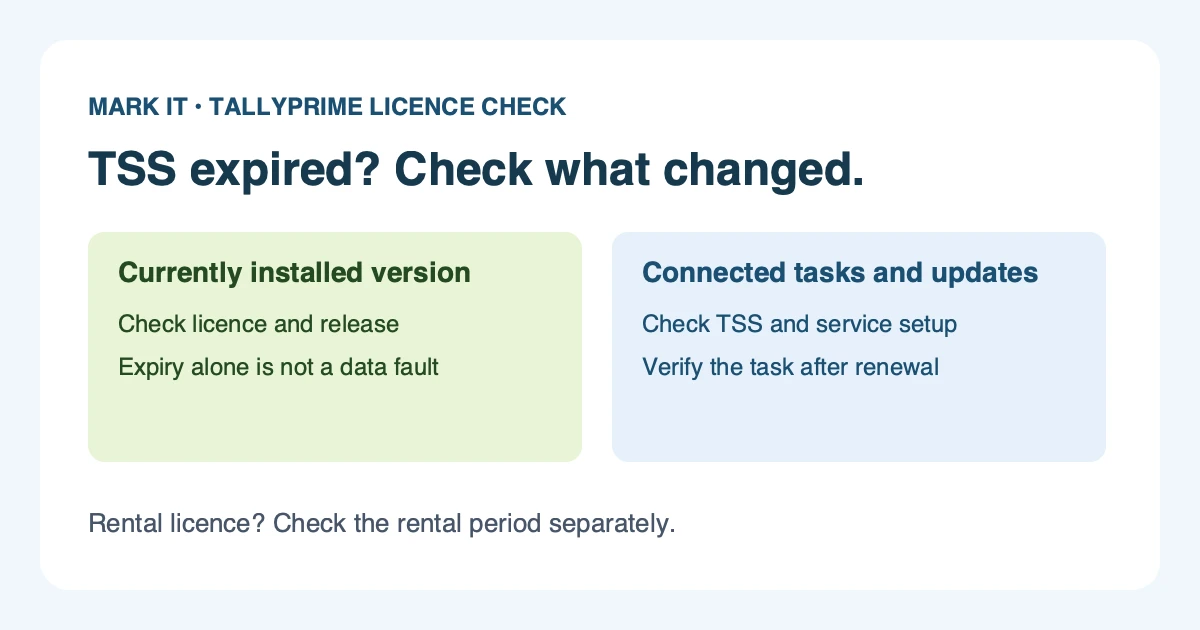
An expired TSS message does not mean your TallyPrime company data has disappeared. TallyHelp says you can keep using the currently installed version, but services that require a valid Tally Software Services subscription become unavailable. Start with the licence type, the task that stopped, and the exact message on screen. Those three details tell you whether you need a renewal, a licence refresh, an upgrade check, or a different support investigation.
This guide is for existing licence holders checking an expiry message or a failed connected task. For edition and purchase choices, use our TallyPrime pricing comparison. For a renewal quote, the existing TSS renewal page remains the plan and order destination.
Separate the licence, TSS and rental period
TSS means Tally Software Services. It provides product updates and connected capabilities alongside your TallyPrime licence. It is useful to separate three questions before paying for anything:
- Perpetual licence: expiry of TSS is different from losing the right to use your currently installed version. Check that version's entitlement instead of installing a newer release to dismiss the message.
- TSS validity: connected services and access to newer releases depend on valid TSS. A working local voucher screen does not prove that an online task will work.
- Rental licence: the licence itself has a rental period. TallyHelp states that renewing the rental also renews TSS for that period. Check the rental dates first; a separate annual TSS purchase may be the wrong transaction.
A hosting plan or support agreement is another contract. Do not assume that renewing TSS extends a cloud hosting term, pays for an add-on, or includes a particular response time. Confirm those items with the provider named on your agreement.
Match the stopped task to the right check
Use the table as a first diagnosis. It identifies dependencies, not a promise that every error is caused by expiry. Connectivity, permissions, portal credentials, bank eligibility and configuration can cause similar symptoms even with valid TSS.
| Your task | What to check | Next action |
|---|---|---|
| Enter vouchers or open local reports | Installed release and licence status | Expiry alone does not establish a data fault. Record any separate company-opening error. |
| Install a newer release or resolve error 6457 | TSS eligibility for the release you are trying to use | Verify entitlement before changing the installation or company data. |
| Generate an e-invoice or e-Way Bill directly from TallyPrime | TSS, internet connection and the connected-service configuration | Check validity and the actual service error. Renewal alone is not confirmation that an invoice was accepted. |
| Use online reports, Tally.NET remote access or data sync | TSS and the relevant access permissions | Confirm the licence, user and connection before testing the required task. |
| Use connected GST or banking functions | TSS plus the supported release, account and service setup | Verify the dependency for your exact workflow; do not apply a blanket fix to every banking error. |
These connected-service categories are described in TallyHelp's current TSS guide. Assess your real dependency: a finance team using remote access needs a different continuity plan from a single-PC business doing local bookkeeping.
Resolve error 6457 without guessing or risking data
Check the release before changing it
TallyHelp associates error 6457 with TSS not being valid for the requested TallyPrime release. The important question is which release your serial number is entitled to use. Capture the release number and message, then verify the licence. Do not delete company folders, reinstall repeatedly, or open your only data copy in a newer release to see what happens.
As checked on November 13, 2026, Tally's rendered download page offers Release 7.2 and its release notes are dated October 12, 2026. That identifies the current release; it does not establish that your particular licence, customisation or company data is ready for it. Our upgrade readiness guide covers the separate backup, add-on and acceptance decisions.
If the company will not open
Keep the original data and a separate backup safe. Note whether the problem affects one company, every company, one computer or all users. A failed data load, a network licence error and a TSS eligibility warning are different problems. Ask for Tally support with that evidence; avoid treating a renewal payment as a data-recovery service.
Choose renewal terms after checking the serial
Current Indian TallyPrime TSS reference prices are below, checked against Tally Solutions' renewal page on November 13, 2026. Each total includes 18% GST. These are term totals, not monthly instalments. Confirm the edition, serial eligibility and final offer before payment.
| Edition and term | Before GST | Including 18% GST |
|---|---|---|
| Silver, 1 year | ₹4,500 | ₹5,310 |
| Gold, 1 year | ₹13,500 | ₹15,930 |
| Silver, 2 years | ₹8,100 | ₹9,558 |
| Gold, 2 years | ₹24,300 | ₹28,674 |
The two-year option has a 10% reduction from buying two one-year terms at the listed base prices. It is an advance term purchase, so compare it with how long you expect to keep the licence and use its connected services. It does not buy an extra user, a different edition or a hosting plan.
Already expired versus renewing before expiry
Under Tally's current validity policy, an expired subscription receives 365 days for a one-year renewal or 730 days for two years, counted from renewal. The extra month is a before expiry benefit, with GVLA-tagged and NGO licences excluded. Do not assume a lapsed serial qualifies for 13 months or that an early-renewal bonus can be backdated. Verify the resulting date on the licence after processing.
Compare the renewal plans and request a quote
Check status, renew and refresh the licence
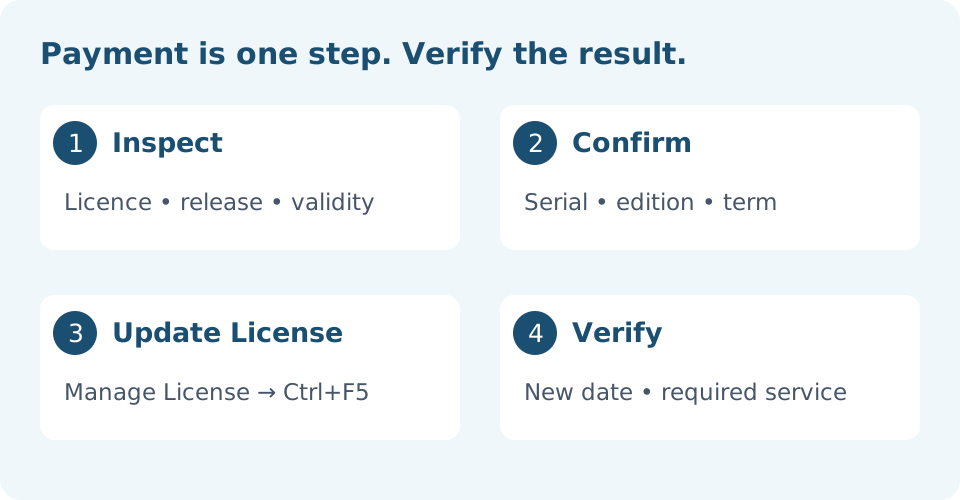
- Read the current state. In TallyPrime, open F1 (Help) > Settings > License > Manage License. TallyHelp also identifies the About page as a place to view TSS details. Note the serial, edition, release, TSS validity and rental period if applicable.
- Open the renewal route. In Manage License, press F9 (Renew TSS), or use Alt+R (Manage TSS Renewal) on Gateway of Tally when renewal is due. You can also use the vendor's renewal page or ask Mark IT for a serial-specific quote.
- Confirm the transaction. Check the serial and term on the quote or checkout. Retain the payment confirmation. Do not pay for a different edition merely to remove a notification.
- Use Update License. Return to Manage License and press Ctrl+F5 (Update). The administrator enters the Tally.NET ID and password privately in TallyPrime, then confirms the update. Never send a password or one-time code with an inquiry.
- Confirm the new validity. Reopen the licence details, check that the serial and edition are unchanged as intended, and verify the new date. If it still appears expired, keep the payment reference and exact message for support.
Update License is not a software upgrade. TallyHelp documents it as refreshing licence details after changes such as renewal. Installing another release is a separate decision. Schedule that work, take a backup and check customisations before changing a working installation.
Verify access and prepare a useful support brief
After the licence date is correct, check the service your team actually needs. For browser reports or remote access, verify authorised access to the intended company. For sync, inspect the connection and status before sending production data. For invoicing or filing, review the configuration and credentials first; do not create a dummy IRN, e-Way Bill, return or payment just to test a renewal. Carry out the next genuine authorised task with the normal review controls.
If the task still fails, record the exact message and time. A current TSS date rules out one dependency; it does not prove that a bank, tax portal, internet connection or access permission is working. Keep evidence of the failed step and ask for diagnosis of that step.
Bring this brief to a callback
- Perpetual or rental licence, edition and serial number.
- Installed release and the displayed validity date.
- The task that stopped and its exact message, including error 6457 if shown.
- Whether you already renewed, the chosen term and the payment reference.
- Any scheduled upgrade, customisation or remote-access dependency.
The contact form collects contact details. Keep this brief ready for the conversation; it is not attached automatically. Do not include company data, credentials or recovery material in a public message.
Source check: the current licensing error guide, Update License instructions and linked TSS documents were reviewed on November 13, 2026. This guide describes product behaviour and practical checks; it does not guarantee a statutory outcome, activation time or recovery of damaged data.
Frequently asked questions
Can I use TallyPrime after TSS expires?
Yes. Tally documents that the currently installed version can still be used, while services requiring valid TSS become unavailable. Check rental validity separately: a rental licence is time limited.
Does expired TSS mean my data is damaged?
TSS expiry alone does not establish data loss or corruption. If a company will not open, preserve its files and backup, note the exact error, and ask for diagnosis instead of assuming that renewal repairs damaged data.
What does TallyPrime error 6457 mean?
TallyHelp identifies error 6457 as TSS not being valid for the requested TallyPrime release. Verify the serial number, installed release and entitlement before upgrading. Renewal and a licence update may be needed; protect your company backup first.
Is TSS included with a rental licence?
TallyHelp says TSS renews for the rental period when the rental licence is renewed. Verify that period first, rather than ordering a separate perpetual-licence TSS renewal.
Will renewal automatically install a new TallyPrime release?
Renewal, Update License and software upgrade are separate actions. After renewal, refresh the licence in Manage License with Ctrl+F5, confirm the new validity, and plan any software upgrade with a backup and add-on checks.
Do expired subscriptions receive the extra free month?
The current early-renewal policy awards the extra month only before expiry and excludes GVLA-tagged and NGO licences. An expired one-year or two-year renewal follows the standard 365-day or 730-day validity from renewal, without that bonus.