

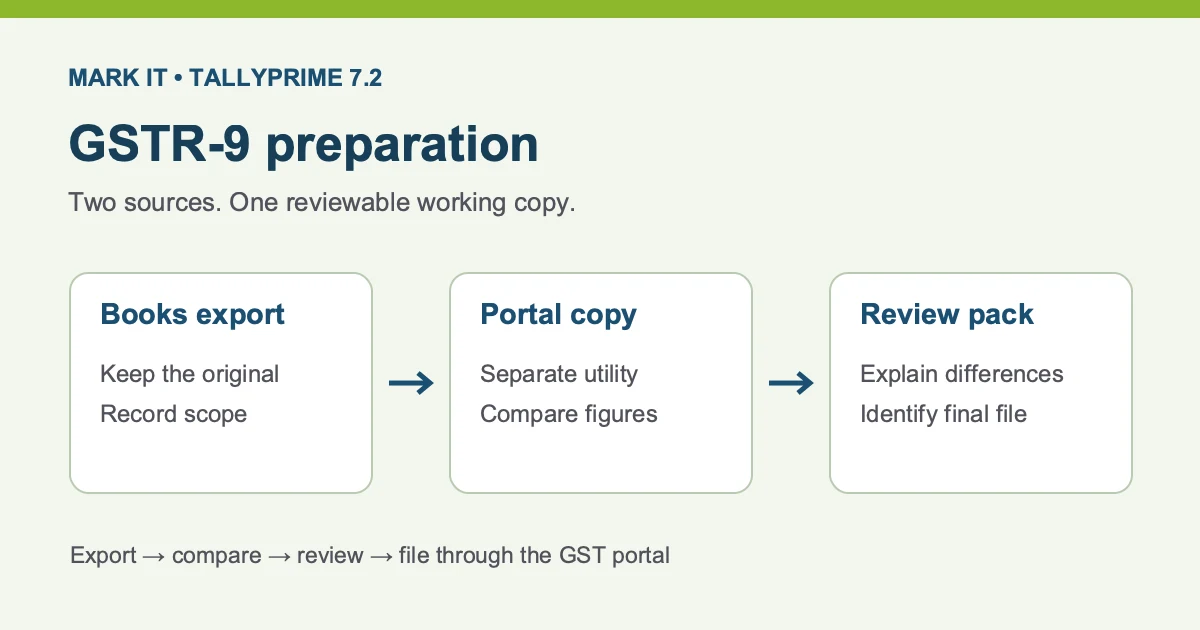
Use TallyPrime's annual GST figures as the starting point for review, then compare them with a separate copy of the GST portal data. TallyPrime 7.2 adds a GSTR-9 export route. It helps prepare the return; an exported workbook is not evidence that a return has been filed. Keep the books export intact so that you can explain each difference before the final portal review.
This guide is for the accountant preparing the files and the person reviewing them. It covers the software task and a suggested review record. It does not decide your filing obligation, tax treatment or deadline. Confirm those for the relevant financial year with your adviser and the GST portal. Product instructions were checked against the linked TallyHelp pages on November 19, 2026.
Choose an export, keep the two sources separate, or prepare the review handoff.
Preparing FY 2025–26? GSTN's October 13 advisory says those annual returns were enabled from October 8, 2026. It also says the year's GSTR-1 and GSTR-3B returns must be filed before the annual-return tile is enabled.
Check the release and the job first
The official 7.2 release notes describe exporting all GSTR-9 sections or the HSN/SAC summary for comparison with portal information. If you use an older release, follow its earlier-release preparation instructions; do not assume the same export controls are available.
Write down your installed release, financial year, company and GST registration before generating files. For example, preparing FY 2025–26 information is a different job from setting up FY 2027–28 accounts. Keep the new financial year setup guide for that separate task. If an upgrade is needed, check the upgrade options before changing a working installation.
Review the books before exporting
TallyHelp's GST Annual Computation reference explains the annual view of liability, input credit and HSN/SAC information. Open that report through Go To and select the financial year. Investigate incomplete GST details and excluded transactions, rather than assuming every voucher entered in the company appears in the annual totals.
You can drill from a report section through monthly details to individual vouchers. Use that trail to locate the source of a difference. The report also distinguishes HSN information needing completion. Check those rows before treating an HSN export as complete. A large total that looks plausible is a weak check when an entire period or registration is missing.
Make a short preparation record
- Scope: note the financial year, GSTIN and company used, including whether your working review covers one registration or several.
- Source time: record when the books were exported and when the portal information was obtained. A later change may explain why two people see different totals.
- Exceptions: list unresolved items and the person checking them. Keep a reason for each exclusion that affects the review.
- Control figures: retain the report totals used for the comparison. Record them again after any approved book correction.
Choose the export that matches the review
The current TallyHelp export procedure requires return exceptions to be resolved and GSTR-1/GSTR-3B to be filed for the relevant months. Obtain the current GSTR-9 offline utility from the GST portal. Check TallyHelp's Excel privacy setting prerequisite before exporting.
In the annual report, confirm the period and registration selection. Use Export, then Data for GSTR-9. Configure the selected sections, utility template location and output folder; save and run the export. Keep the generated books file separately. Use the linked procedure for the exact controls on your release.
| Your job | Export choice | Completion check |
|---|---|---|
| Review the annual return figures across sections | All Sections | Identify the financial year and registration scope in your working record; compare each required section. |
| Work specifically on classification summaries | HSN/SAC Summary | Check inward and outward information; do not treat this limited export as a review of every return section. |
Keep books and portal files separate
Bring the portal JSON into a different copy of the offline utility. Importing it into the books export can replace the figures you intended to compare. Review the two copies, make the reviewed adjustments in the portal-data working copy and generate the upload JSON there. Complete the subsequent filing review on the GST portal.
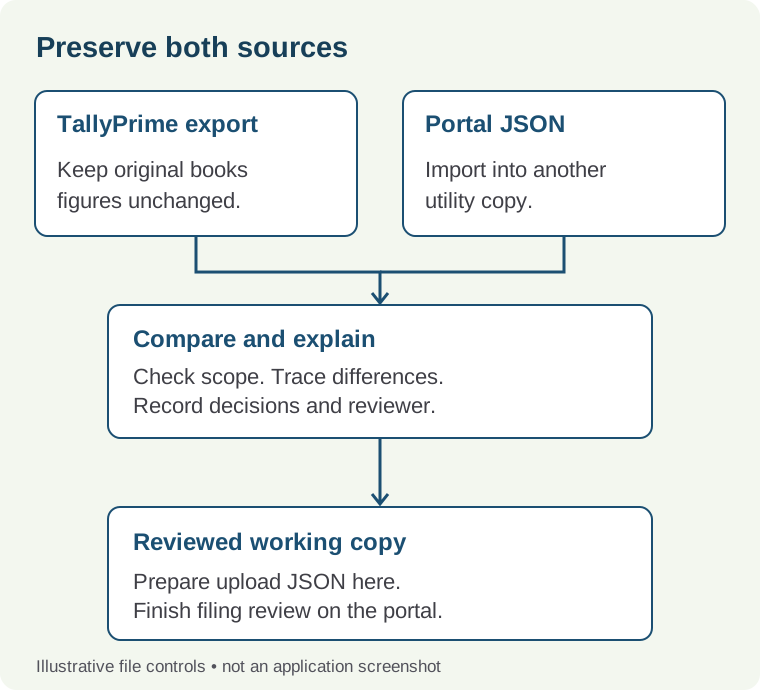
A simple folder convention makes the distinction easier to see: 01-books-original, 02-portal-original and 03-reviewed-working. These are suggested names, not folders created by TallyPrime. Include the year and GSTIN in your own filenames, and preserve the originals before editing working copies. Keep customer files in the team's approved storage.
Work a difference before changing a figure
Consider a fictional review where one selected row shows ₹1,20,000 in the books export and ₹1,18,000 in the portal copy. The difference is ₹2,000. That subtraction identifies an investigation item; it does not prove which figure is correct or establish a tax liability. Do not overwrite the smaller figure simply to make the two sources agree.
First confirm that both files use the same year, registration, section and unit. Then locate the month and transaction behind the difference. A timing difference, credit note, missing detail or a correction after an earlier filing may require different treatment. Ask the responsible accountant to determine the treatment from the actual documents.
- Give it a reference: for example, review item R-01, with the section, both amounts and the ₹2,000 difference.
- Record the evidence: identify the period and supporting voucher or return reference in the private working papers.
- Assign a decision: record an owner, the explanation and whether a book correction or return-working adjustment is proposed.
- Close the loop: retain who reviewed the decision and the resulting control figures. If books change, produce a dated replacement export and keep the earlier one.
This record is a suggested review discipline, not an assertion that TallyPrime produces a variance register automatically. An unexplained difference should remain visible to the reviewer. A zero difference after an unsupported adjustment is not a reliable completion signal.
Hand over a reviewable pack
Give the reviewer the original books export, original portal download, identified working copy, control totals and the list of resolved and open differences. Include any section you have deliberately left outside scope. For an HSN-only task, say so prominently; the recipient should not have to infer what was checked from a filename.
Before filing, the responsible reviewer should be able to trace a changed figure back to its supporting evidence, identify the final working version and see any unresolved decision. Preserve the final portal acknowledgement after filing as a separate record. A successful export or a JSON file on disk should not be labelled as that acknowledgement.
Prepare a focused software-support callback
If the report, export or template behaves unexpectedly, note the installed release, relevant year, chosen export scope and exact error text. Record which step failed and whether the issue can be reproduced in a safe copy. That gives a support conversation a concrete starting point.
Our contact form requests contact details for a callback. Keep passwords, portal credentials and confidential books out of the initial inquiry. Discuss the software issue with Tally support; confirm tax decisions and filing sign-off with the responsible adviser. Scope and charges, if any, can be discussed before work begins.