
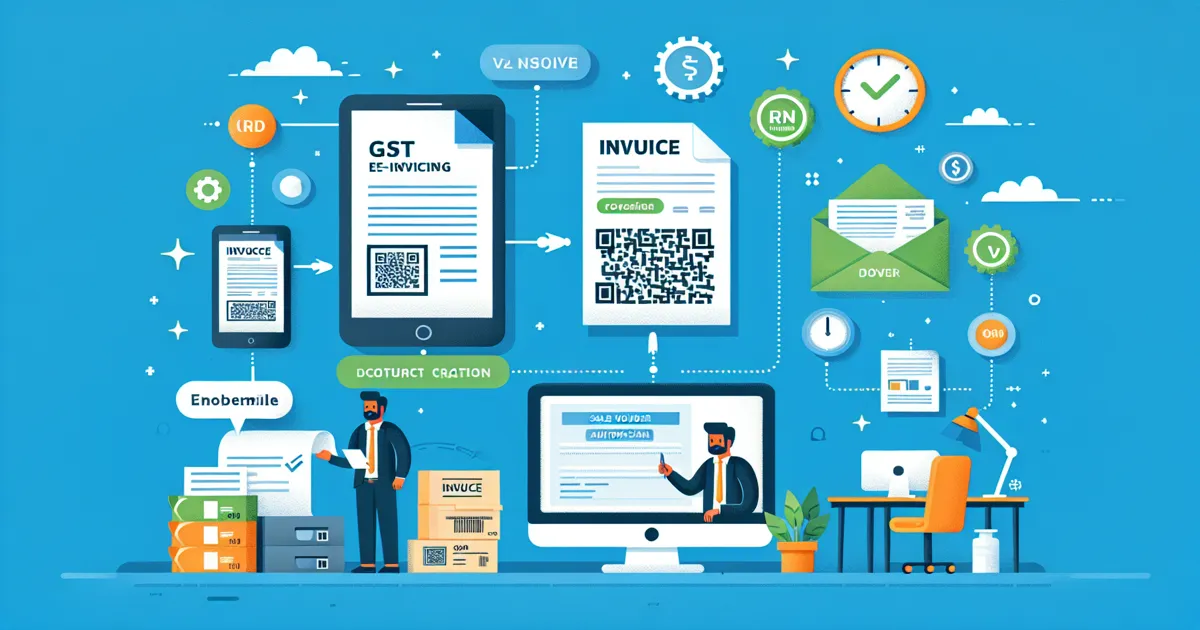
Once you have enabled e-invoicing in TallyPrime, the next step is generating e-invoices for your business transactions. TallyPrime supports both single and bulk e-invoice generation, making it convenient whether you process a few invoices daily or hundreds.
This guide covers the complete e-invoice generation workflow -- from creating a sales voucher to printing the invoice with IRN and QR code.
Creating a Sales Voucher with E-Invoice
To generate an e-invoice, start by recording a GST sales transaction in TallyPrime:
- Go to Gateway of Tally > Vouchers > F8 (Sales)
- Select the party ledger (buyer) -- ensure their GSTIN is configured in the ledger master
- Add stock items or ledger entries with appropriate GST rates
- Set "Provide e-Invoice details" to Yes when prompted
- Enter Bill To address details (buyer's registered address)
- Enter Ship To address if the delivery location differs from the billing address
- Verify all GST details including HSN/SAC codes, tax rates, and amounts
Important: Avoid starting invoice numbers with zero (0), slash (/), or hyphen (-). The IRP rejects invoice numbers beginning with these characters.
Single E-Invoice Generation
After filling in all voucher details, follow these steps to generate a single e-invoice:
- Press Ctrl+A to save the voucher
- TallyPrime prompts you to enter your e-Invoice login credentials (if not already cached for the session)
- The voucher data is sent to the IRP (Invoice Registration Portal) for validation
- If validation passes, the IRP returns:
- IRN (Invoice Reference Number) -- a unique 64-character hash
- QR code -- digitally signed, containing key invoice details
- Acknowledgement Number (Ack No)
- Acknowledgement Date (Ack Date)
- These details are auto-populated in the voucher -- no manual entry required
The entire process takes just a few seconds with a stable internet connection. Once generated, the IRN is permanently linked to the voucher in TallyPrime.
Printing E-Invoice
When you print a voucher that has an e-invoice generated, the printed output includes:
- IRN number at the top of the invoice
- QR code that can be scanned to verify authenticity
- Acknowledgement Number and Acknowledgement Date
- All standard invoice details (party name, items, GST breakup, totals)
TallyPrime uses the standard invoice print format with e-invoice details automatically appended. You can customize the print layout using the built-in print configuration options.
Bulk E-Invoice Generation
For businesses that process multiple invoices daily, TallyPrime offers a bulk e-invoice generation feature that saves significant time:
- Record all your sales vouchers during the day without generating e-invoices individually
- Navigate to the e-Invoice report (Gateway > Display More Reports > Statutory Reports > GST Reports > e-Invoice)
- The report shows all vouchers with pending e-invoice status
- Select multiple pending vouchers
- Choose "Generate e-Invoice" to process all selected vouchers at once
- TallyPrime sends each voucher to the IRP and populates IRN details for all successful generations
Bulk generation is ideal for end-of-day batch processing. Any vouchers that fail validation are flagged with specific error messages so you can fix and retry them individually.
E-Invoice Without E-Way Bill
By default, TallyPrime may attempt to generate an e-Way Bill along with the e-invoice. If you want to generate only the e-invoice without an e-Way Bill:
- Press F12 (Configure) in the voucher or e-invoice screen
- Set "Send e-Way Bill details with e-Invoice" to No
- Only the e-invoice (IRN) will be generated
This is useful for transactions where the invoice value is below the e-Way Bill threshold or for credit notes and debit notes. Learn more about e-Way Bill requirements under GST.
E-Invoice with E-Way Bill
For sales invoices (INV type) where both e-invoice and e-Way Bill are required, TallyPrime can generate them simultaneously:
- Set "Generate e-Way Bill along with e-Invoice" to Yes in the voucher configuration
- Enter the required transport details (transporter ID, vehicle number, distance)
- Both IRN and e-Way Bill number are generated in a single API call
Note: Combined e-invoice + e-Way Bill generation is available only for Sales (INV) transactions. It is not available for credit notes or debit notes.
Handling Common Errors
Here are the most common e-invoice generation errors and their solutions:
- Invoice number starting with 0, /, or - -- Change the invoice numbering series to avoid these characters. The IRP rejects such formats
- Duplicate invoice number -- An IRN already exists for this invoice number + GSTIN + financial year combination. Use a different invoice number
- Invalid GSTIN -- Verify that the party's GSTIN is correct and active on the GST portal
- Network timeout -- Check your internet connection and retry. TallyPrime saves the voucher locally, so no data is lost
- HSN/SAC code mismatch -- Ensure the HSN or SAC code in the voucher matches a valid code in the GST system
- Mandatory fields missing -- Check that all required fields (GSTIN, address, pincode, HSN code) are filled in
If an e-invoice needs to be voided after generation, follow our detailed guide on how to cancel an e-invoice in TallyPrime. You can also use our e-Invoice eligibility checker to verify compliance requirements.