

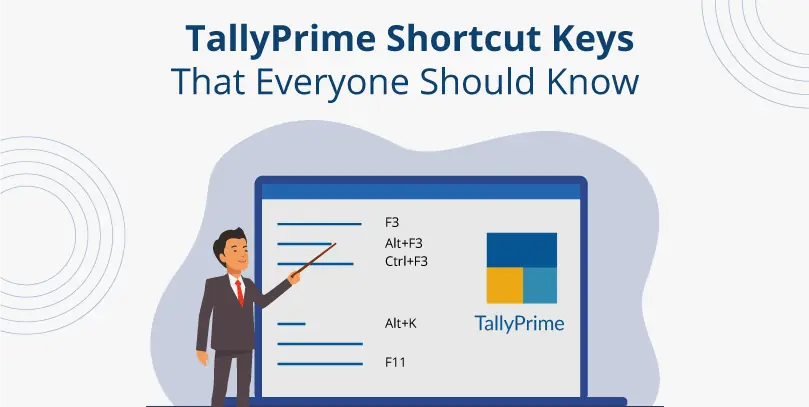
As a business management software, TallyPrime makes it easy for companies to manage their accounting, banking, taxation, inventory, and other business needs. TallyPrime is ideal for all businesses, whether small, mid-sized, or large enterprises.
Learning TallyPrime shortcut keys can dramatically enhance your speed and productivity. With TallyPrime 7.0, you also get new features like SmartFind (Ctrl+F) for universal search across the application. Below is a comprehensive list of 80+ essential TallyPrime shortcut keys organized by category.
Showing all shortcuts. Start typing to filter.
Navigation & General Shortcuts
| Shortcut | Action |
|---|---|
| Esc | Return to previous screen |
| Alt+F4 | Exit TallyPrime |
| Ctrl+Q | Exit screen or quit form |
| Ctrl+A | Accept/save current screen |
| F11 | Open Company Features |
| F12 | Open Configuration settings |
| Ctrl+F | SmartFind - Universal search (TallyPrime 7.0) |
| Tab | Move to next input field |
| Shift+Tab | Move to previous input field |
| Home / PgUp | Jump to first line in list |
| End / PgDn | Jump to last line in list |
Voucher Entry Shortcuts
Most-used keys in daily voucher work
The five function keys F5 through F9 handle 80%+ of typical voucher creation. Memorize these first; the rest in the table below cover the longer tail.
| Shortcut | Voucher Type |
|---|---|
| F4 | Contra Voucher |
| F5 | Payment Voucher |
| F6 | Receipt Voucher |
| F7 | Journal Voucher |
| F8 | Sales Voucher |
| F9 | Purchase Voucher |
| F10 | View All Vouchers |
| Alt+F5 | Debit Note |
| Alt+F6 | Credit Note |
| Alt+F7 | Stock Journal |
| Alt+F8 | Delivery Note |
| Alt+F9 | Receipt Note |
| Ctrl+F4 | Payroll Voucher |
| Ctrl+F7 | Physical Stock |
| Ctrl+F8 | Sales Order |
| Ctrl+F9 | Purchase Order |
What Is the Shortcut Key to Select Company in TallyPrime?
The shortcut key to select a company in TallyPrime is Alt+F3. Press it from the Gateway of Tally to open the Select Company screen, then pick the company you want to work on. This works on every TallyPrime release from 1.x through 7.x.
Three related shortcuts cover the rest of the company-switching workflow:
F3: switch between companies that are already loaded in the current session (no re-open needed).Ctrl+F3: close all loaded companies in one keystroke.Alt+K: open the Company menu (rename, alter, backup, restore, split).
If Alt+F3 is not working: check whether the keyboard's Alt is being intercepted by your remote-desktop or RDP client. In TallyPrime on AWS or Tally on Cloud setups, the host RDP often steals Alt+F3 for window management. Try Right Alt+F3 or remap the host shortcut. This is a remote-session quirk, not a TallyPrime limitation.
Tally ERP 9 used the same Alt+F3 binding for company management, but the menu it opens has been redesigned in TallyPrime. See the TallyPrime vs Tally ERP 9: Key Shortcut Differences section below for the full migration map.
Company & Menu Shortcuts
| Shortcut | Action |
|---|---|
| Alt+F3 | Select Company |
| F3 | Switch between open companies |
| Ctrl+F3 | Close all loaded companies |
| Alt+G | Go To (open any report/master) |
| Ctrl+G | Switch between reports |
| Alt+K | Open Company menu |
| Alt+Y | Company Data Management |
| F2 | Change date/period |
Data Entry & Editing Shortcuts
| Shortcut | Action |
|---|---|
| Alt+C | Create master on-the-fly / Calculator |
| Alt+D | Delete voucher or master |
| Alt+X | Cancel voucher |
| Alt+R | Retrieve narration from previous ledger |
| Ctrl+R | Retrieve narration from previous voucher |
| Ctrl+D | Remove item/ledger line |
| Ctrl+Enter | Alter master during entry |
| Ctrl+I | Add more details to master/voucher |
| Ctrl+T | Mark voucher as post-dated |
| Ctrl+L | Mark voucher as optional |
| Ctrl+H | Change voucher mode |
| Alt+2 | Duplicate voucher entry |
Reports & Export Shortcuts
| Shortcut | Action |
|---|---|
| Alt+F1 | Detailed/condensed view toggle |
| Alt+F12 | Filter data in report |
| Ctrl+F12 | Calculate filtered balances |
| Alt+P | Print menu |
| Alt+E | Export menu |
| Alt+M | Email menu |
| Ctrl+P | Print current item |
| Ctrl+E | Export current item |
| Ctrl+M | Email current item |
| Alt+V | Open GST Portal |
GST-Related Shortcuts
| Shortcut | Action |
|---|---|
| Alt+V | Open GST Portal for filing |
| Alt+J | Define statutory adjustments |
| Alt+Z | Data synchronization (Connected GST) |
Banking & Reconciliation Shortcuts
TallyPrime 6.0+ introduced Connected Banking and auto-reconciliation. These shortcuts help you navigate banking features quickly:
| Shortcut | Action |
|---|---|
| Ctrl+B | Open Bank Reconciliation |
| Alt+S | Statement of Accounts |
| Ctrl+J | View Exception Reports |
| Alt+H | Change display columns in report |
| Alt+F2 | Change period in reports |
Selection & List Navigation Shortcuts
These shortcuts speed up working with lists, masters, and selection screens in TallyPrime:
| Shortcut | Action |
|---|---|
| Space | Select/deselect item in a list |
| Ctrl+Space | Select all items in list |
| Ctrl+N | Toggle Calculator mode |
| Shift+Enter | Move to previous field |
| Ctrl+U | Show only used masters in list |
| F1 | Select button from toolbar |
Advanced Voucher Operations
Power users rely on these advanced shortcuts for efficient voucher management:
| Shortcut | Action |
|---|---|
| Ctrl+O | Open linked voucher from report |
| Alt+S | Switch between Accounting/Inventory views |
| Alt+W | Open context-sensitive TallyHelp |
| Ctrl+F1 | View all available keyboard shortcuts |
| Alt+N | Toggle auto-columns in reports |
| Ctrl+Alt+I | Auto-fill repeated values |
TallyPrime vs Tally ERP 9: Key Shortcut Differences
If you're upgrading from Tally.ERP 9 to TallyPrime, note these important shortcut changes:
| Function | Tally ERP 9 | TallyPrime |
|---|---|---|
| Select Company | F1 | Alt+F3 |
| Shut Company | Alt+F1 | Ctrl+F3 |
| Detailed/Condensed | Alt+F1 | Alt+F1 |
| Go To Menu | Not available | Alt+G |
| SmartFind / Search | Not available | Ctrl+F |
| Switch Open Companies | F1 (Shut/Select) | F3 |
| Company Features | F11 | F11 (same) |
| Configuration | F12 | F12 (same) |
Tip: Most voucher shortcuts (F4-F10, Alt+F5-F9) remain the same between Tally ERP 9 and TallyPrime. The major changes are in navigation and company management shortcuts. If you need help transitioning, our Corporate Training program covers all the differences.
TallyPrime 7.0 New Features
TallyPrime 7.0 introduced several new capabilities that enhance productivity:
- SmartFind (Ctrl+F) - Universal search to find vouchers, masters, and reports from anywhere
- TallyDrive - Cloud backup and restore for your data
- PrimeBanking - Connected banking for seamless payments
- Connected GST - Auto-reconciliation of GSTR-2A/2B
- Free Tools - Try our free GST calculator to verify tax amounts quickly
Want to boost your team's productivity with TallyPrime? Our Corporate Tally Training program covers all shortcut keys and advanced features.
Tips for Using Shortcut Keys Effectively
- Alt+C - Create masters on-the-fly while entering vouchers
- Esc - Use frequently to move back step-by-step without the mouse
- Tab - Quickly jump between fields on any screen
- Ctrl+A - Accept and save any form or report
- Ctrl+Q - Quit any screen without saving
By mastering these keyboard shortcuts, you can complete your work faster and boost productivity significantly. Related concepts: Gateway of Tally, company creation, voucher. Get TallyPrime today or contact us for expert assistance from Mumbai's trusted 5-Star Tally Partner.
Related TallyPrime guides: TallyPrime 7.0 features (SmartFind / Ctrl+F), TallyPrime version history, TallyPrime 6 vs 7 differences.
Last verified: 2026-05-26 against TallyPrime 7.0 documentation at help.tallysolutions.com. Includes SmartFind shortcuts (Ctrl+F) introduced in Release 7.0. Author: Mark IT Solutions Team, 5-Star Certified Tally Partner based in Mumbai serving 1,000+ businesses since 1999.